
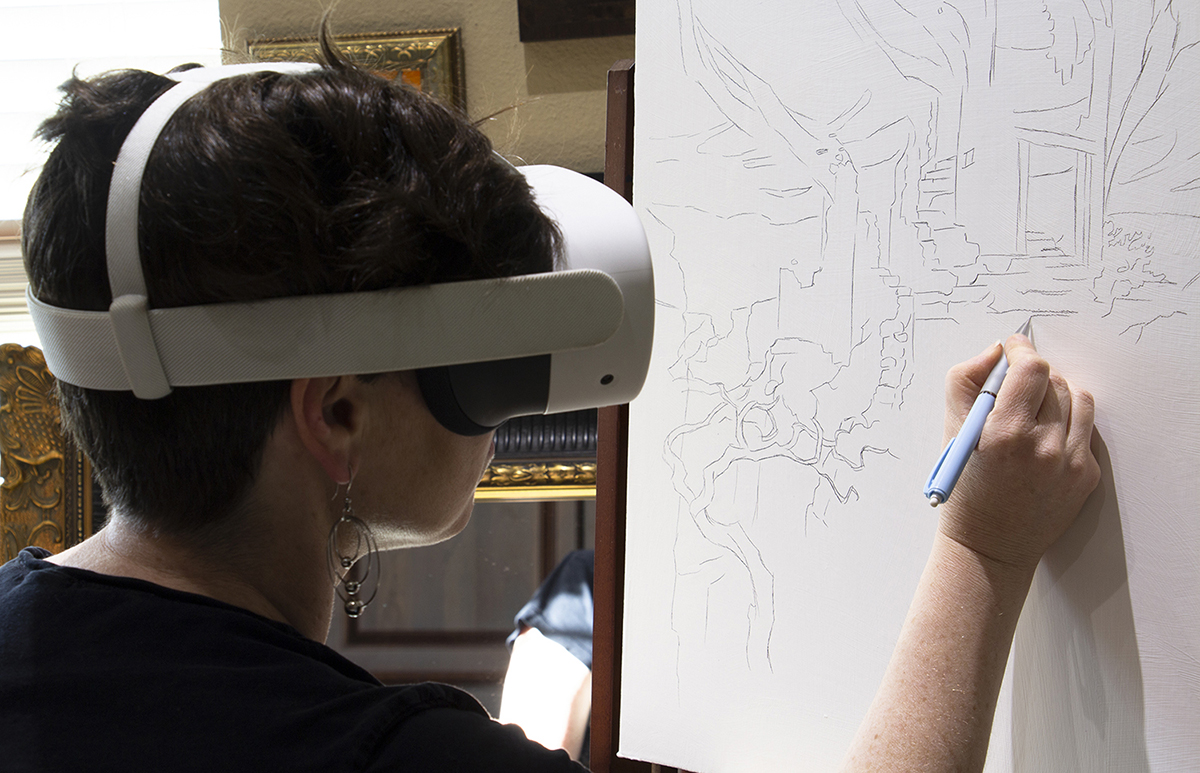
I hate transferring my sketch. I hate it. Every method I have found is tedious. Projectors and transfer paper lose important small details, and to get out of the way of the projection, I lean and bend in unnatural positions for long periods of time. There’s more, but you probably already know- it’s horrible.
But recently, transferring stopped being so terrible.
Have you seen Kat Dieux‘s videos on Instagram, in which she uses VR to project her murals?
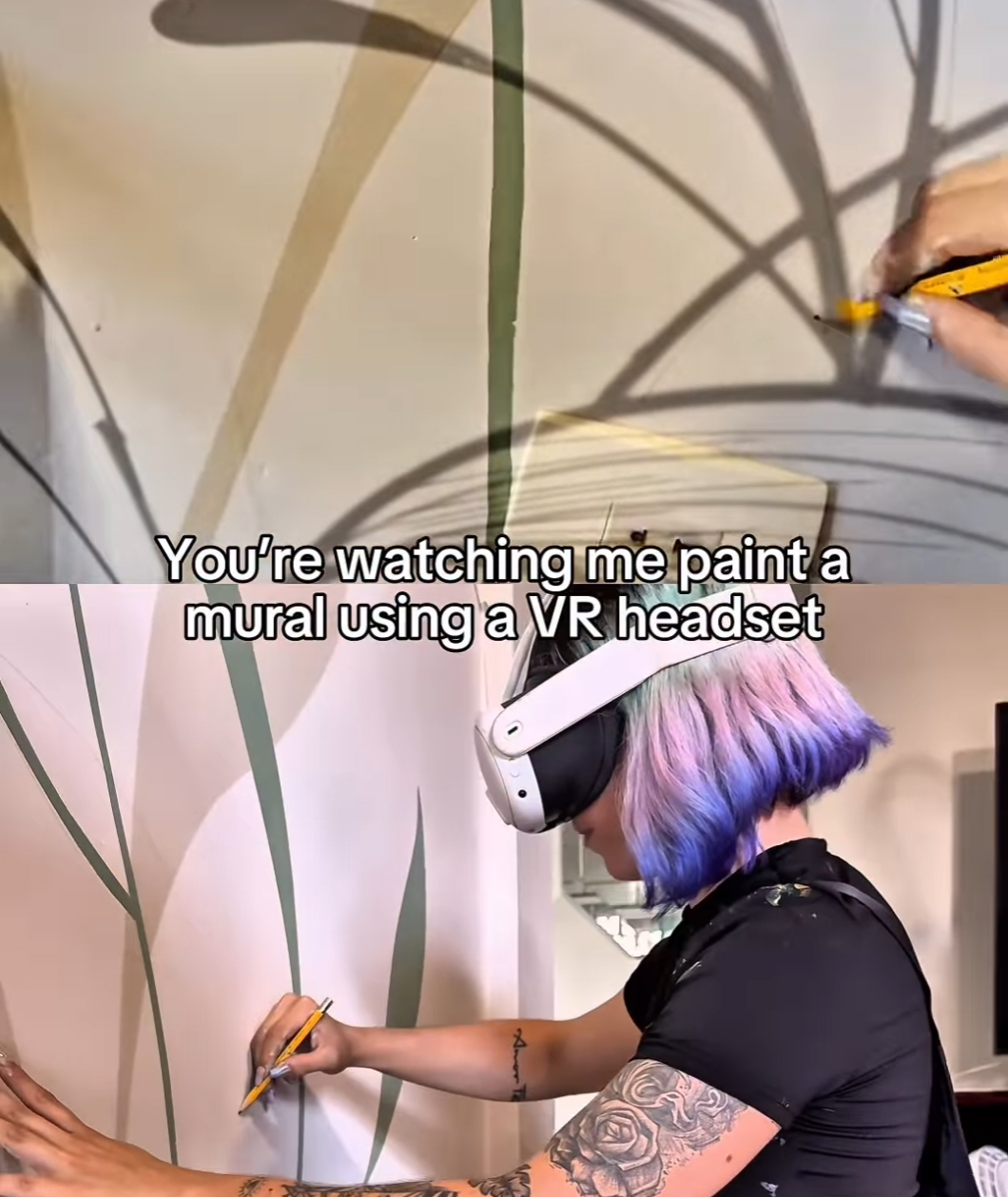
I had, and I was intrigued. I thought it might work for larger pieces…murals are large, and large can be forgiving. I doubted it could hold steady enough to be useful on small work…but even just replacing the projector for the big stuff would be a blessing.
VR is our platform choice as parents because it keeps the kids up and moving, and because the battery functions as a natural timer. However, the headsets we owned were old (Quest 2) and didn’t support AR/passthrough (didn’t support superimposing on the real world). When my son declared he was saving up to replace his dying headset with the updated model (Quest 3), I offered to go 50/50 with him.
This thing is GREAT. Let’s just get right to it:
Highlights:
- The image locks on so well that I even transfer AP and tiny sketches with it
- The ‘Precision Trace’ mode zooms in to 2x. My hands look huge!
- The app saves the physical location of the sketch so I can turn it off and start the transfer again another day
Pros:
- Scale as large or small as you want…unlike projector which gets fuzzy too close or far
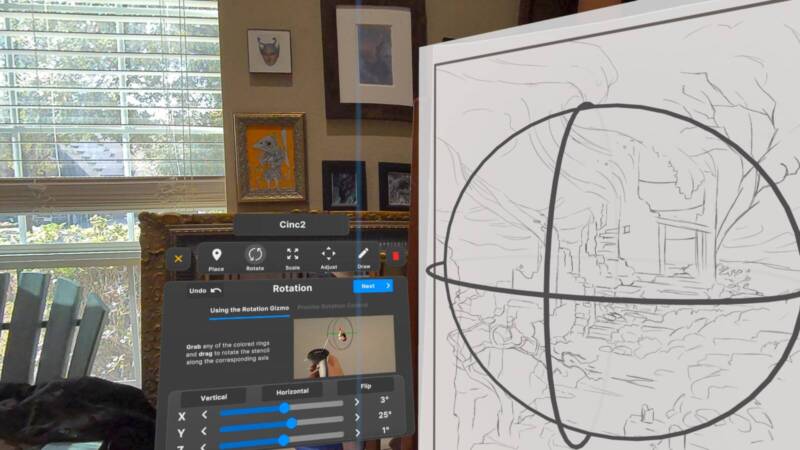
- Rotating or repositioning the canvas for comfort takes 5-10 seconds!
- Micro-adjustments are easy and can be done multiple ways for precision
- It handles transparent PNGs!
- Does not require the room to be dark like projectors!
- Headset cost is similar to a projector, app is $10 once, headset has other art applications*
- Iphone screen is clear through it, so I can keep listening to shows or reading texts while transferring
- + those three highlights up above
Cons:
- Sketch locks into physical place, not to the canvas (if you move the canvas, it stays put)**
- The app does not place sketch behind your hand***
- Long use (for big transfer jobs) can give sensitive individuals a headache
- The sketch in the corners of your field of vision warp out of place a little
- There’s no option for ‘Precision Trace’ without the zoom-in
- It would be nice to have a single-button toggle on/off with the sketch. Currently you must use opacity slider
- It would be nice to enable hand-tracking so I don’t have to pick up a controller to adjust opacity***
- I have to use a straw for my drink.
* Quest also has Gravity Sketch, a free and pretty robust 3D modeling software that imports/exports GRS, OBJ, FBX, IGS/IGES, STL, GLTF/GLB, Collada (DAE), and BLEND. Both this app and Gravity Sketch can be used to mock up how to hang your art for a show, in full-size scale that you can walk around and step back from.
**I’m skeptical that they could make a canvas-lock flawless, and unless this feature was absolutely flawless, I would not want it.
***Since the hand-tracking on the Quest 3 is quite good, I would imagine they’ll add this eventually
For clarity:
- The app I am reviewing is StencilVR
- The only VR headset that it works on is the Quest 3 (any model)
Transferring screenshots, through the headset:
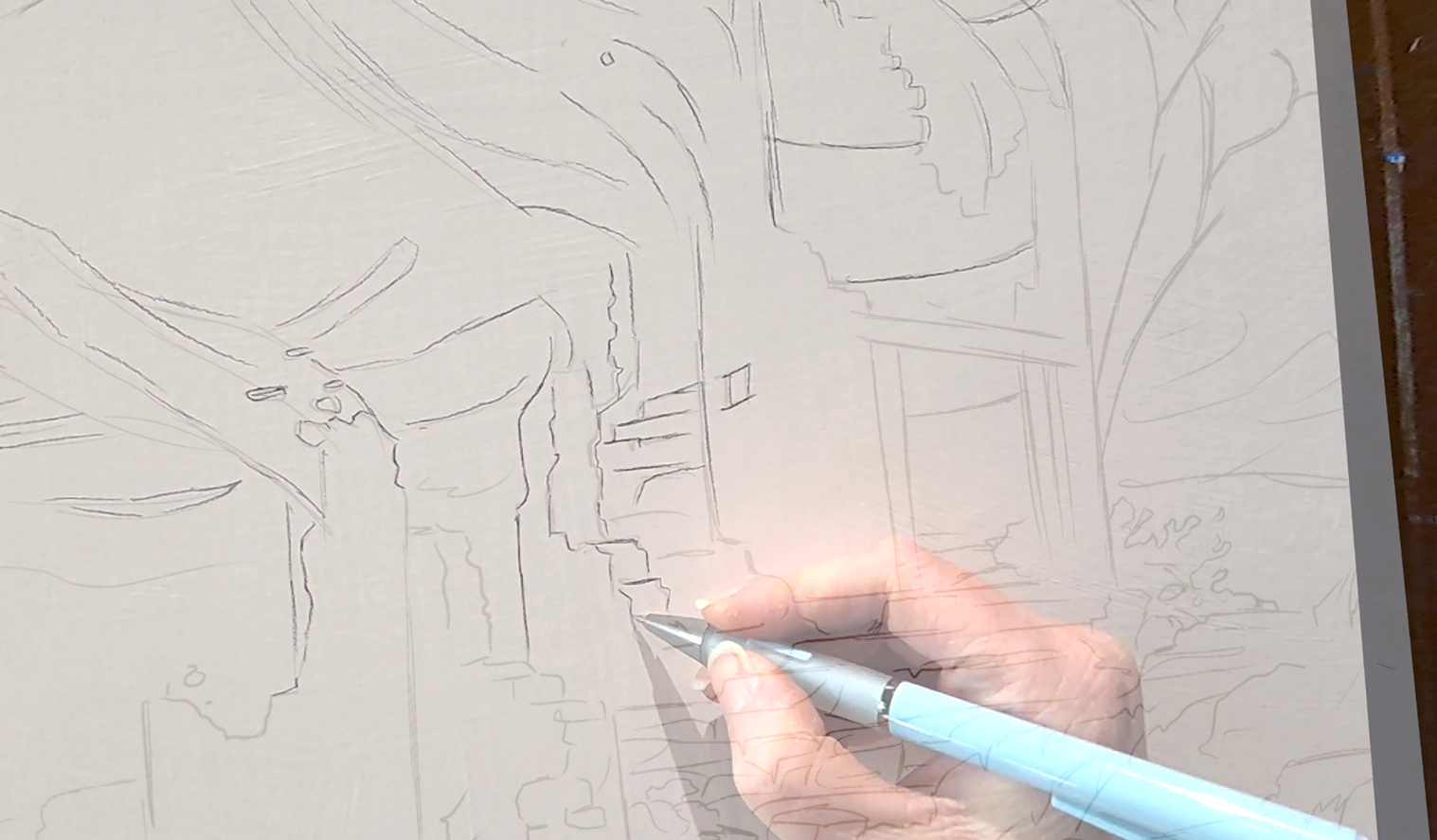
JPG transfer, before I thought to check if it supported PNGs.
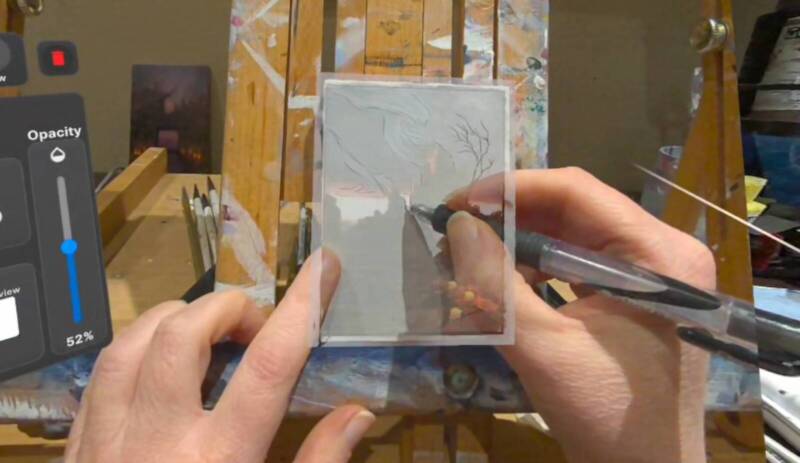
Low-opacity tiny sketch transfer. You can see a bit of the menu on the left.
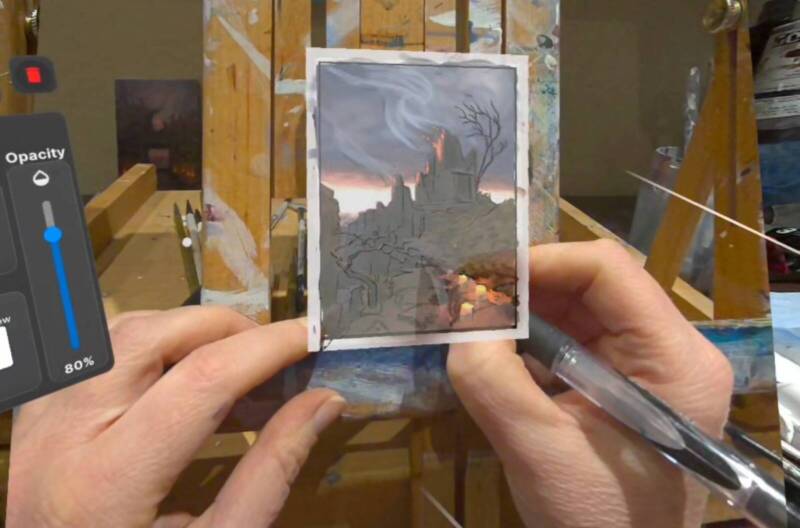
High-opacity sketch transfer. I hope they integrate hand-tracking soon to occlude the sketch where your hand covers it.
Here’s a few gifs to show what using it is like:
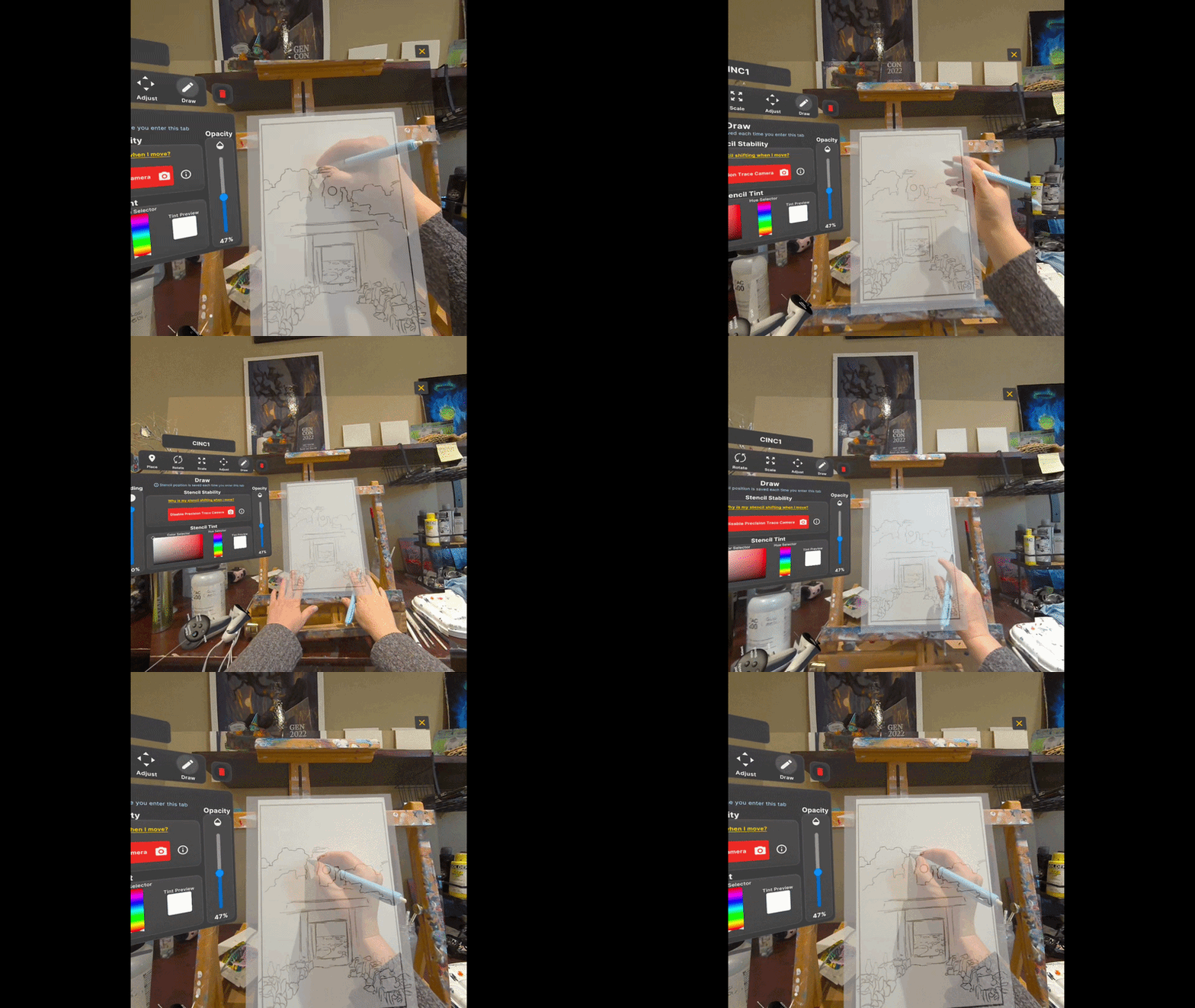
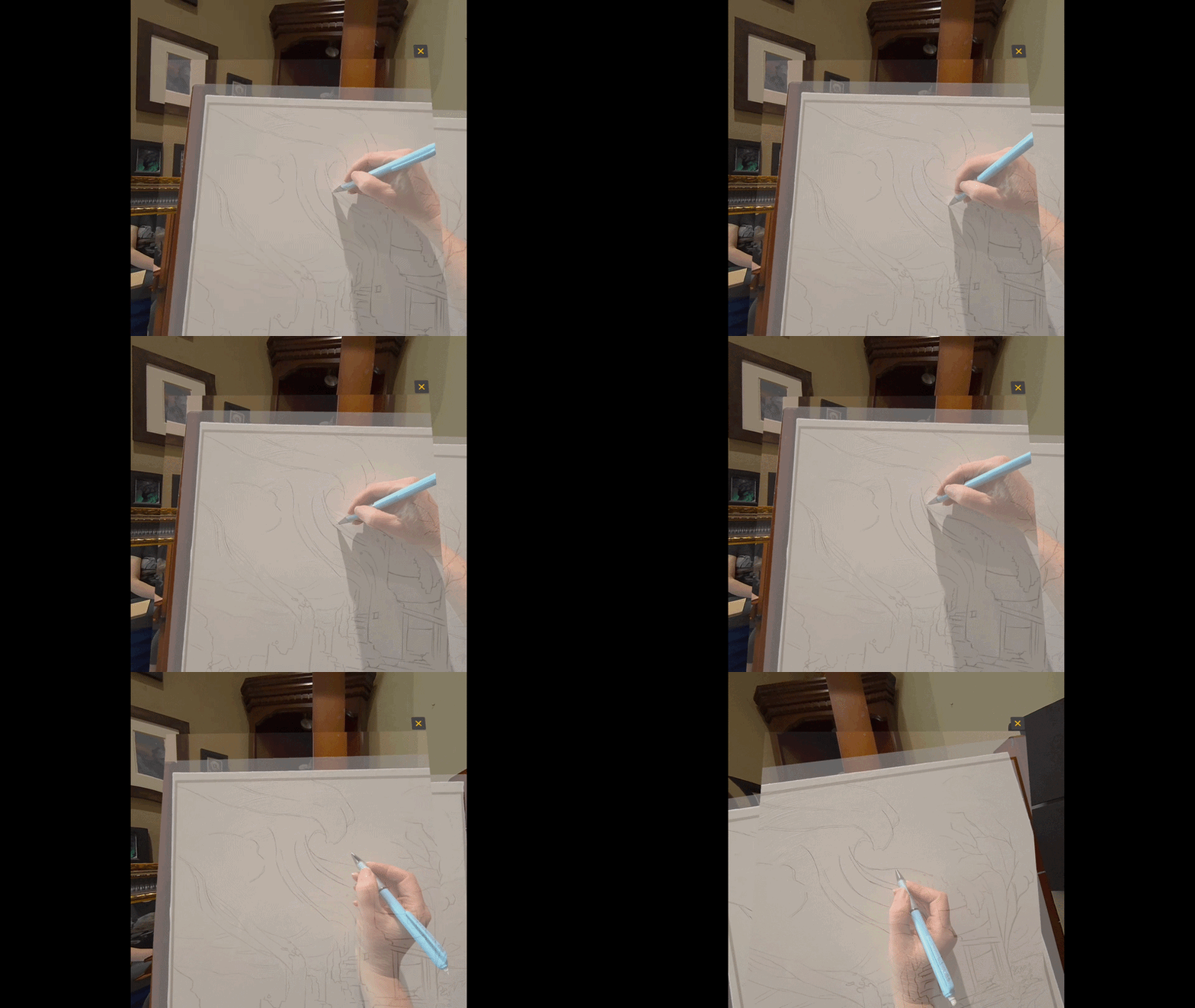
I lean back to show how the sketch doesn’t wobble or float, but stays very steady on the canvas.
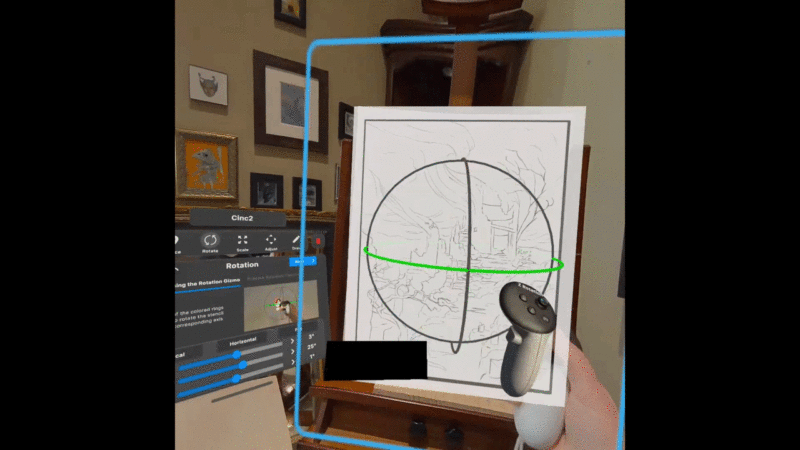
Rotation controls. Note you can either grab and rotate, or you can slide each axis on the menu on the left.
If you haven’t used VR much in the past, remember that it’s in 3D (including your room that you see through the headset), so aligning your digital sketch to the physical canvas is pretty easy. When I’m making sure my sketch is flush, I just put my finger on the white canvas and it’s pretty clear if the sketch sits a millimeter in front or behind the canvas.
An additional application occurred to me while putting this together- this could be very handy for planning how to hang art on a wall. Multiple images can be opened at once, and the scaling menu shows the physical size of the digital sketch in inches. An artist preparing for a show can easily open images of their finished work, scale them to size, and arrange them on a wall, without having to lift anything besides the headset.
If you have access to a Quest 3, or a new projector is in your near future, I suggest this as an alternative!


0 Comments